CSV exports: test the round trip, not just the download
Check separators, quoting, Unicode, spreadsheet interpretation and import behavior before calling an export complete.
Check separators, quoting, Unicode, spreadsheet interpretation and import behavior before calling an export complete.
A downloaded file is only the first check
A successful download proves that bytes reached the browser. It does not prove that a spreadsheet or import job will interpret them correctly. Define the target consumer first. An automated parser, a spreadsheet application and a database importer may make different choices about separators, encoding and column types.
Choose values that reveal ambiguity
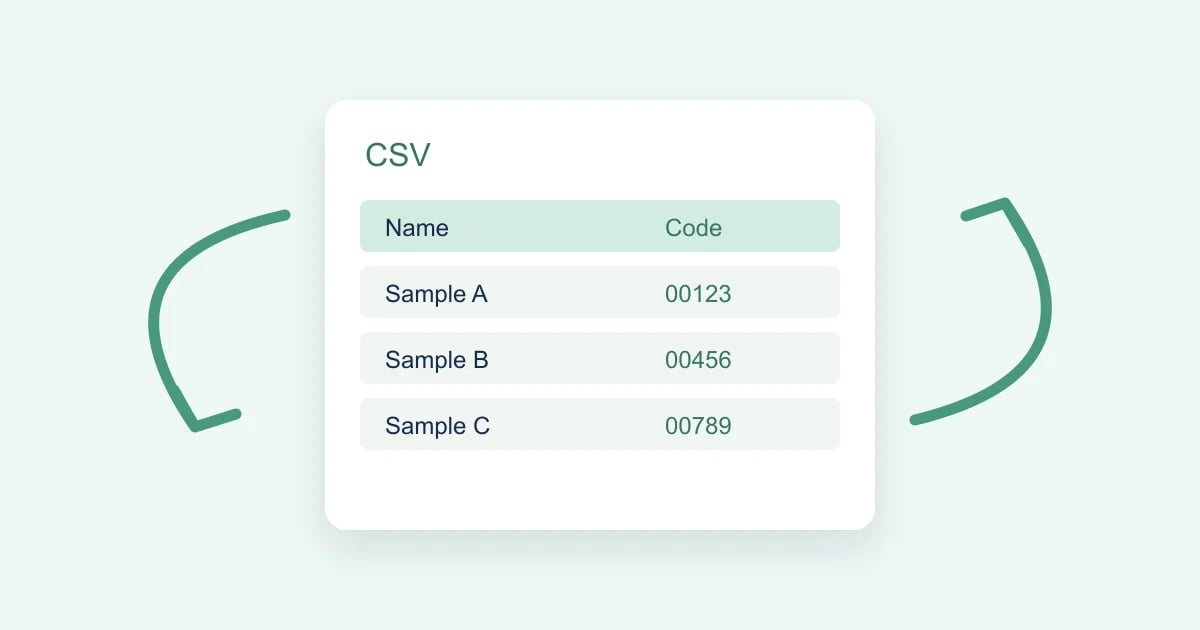
Include a name with an accented character, a value containing a comma, a quoted phrase and a field containing a line break. Add a postal code with a leading zero. These fixtures reveal problems that an all-ASCII sample of short words will miss. Keep the cases synthetic and small enough that a reviewer can inspect each cell.
Check structure before presentation
Use a CSV parser rather than splitting text on commas. A quoted field can contain a delimiter or line break. Compare the header order, row count and number of columns with the schema you exported. Then inspect the file in the intended spreadsheet application, because parser correctness and spreadsheet interpretation are separate tests.
Protect text from automatic conversion
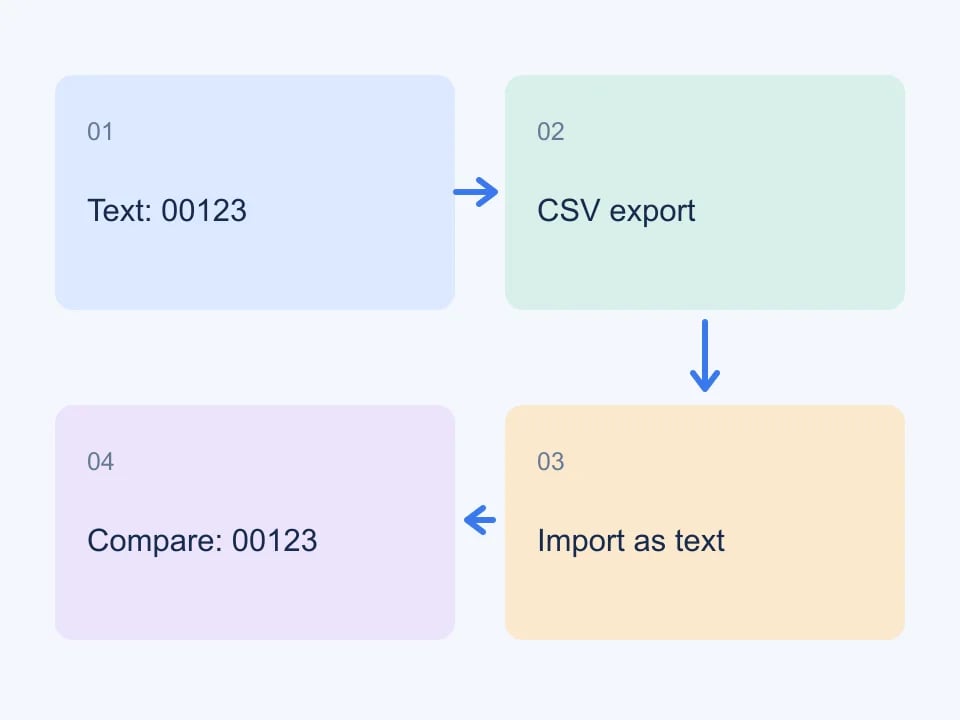
Postal codes, identifiers and account references are often text even when they contain only digits. A spreadsheet may strip zeros or display a long sequence in scientific notation. Use the importer’s text-column settings where available. If exact JSON types matter to your workflow, a JSON export may be a better intermediate format.
| Fixture | What to inspect |
|---|---|
| 00123 | Leading zeros survive |
| A comma, inside | One field rather than two |
| Accented text | Characters survive encoding |
| A quoted phrase | Quotes round-trip correctly |
Treat formula-like cells carefully
Values beginning with formula characters can be interpreted as formulas by spreadsheet software. Genory neutralizes leading formula characters in CSV output. Your own export pipeline should have an explicit policy for untrusted values and tests for its intended spreadsheet consumers. Do not assume that quoting a value alone disables formula interpretation.
Worked example: preserve a small contact export
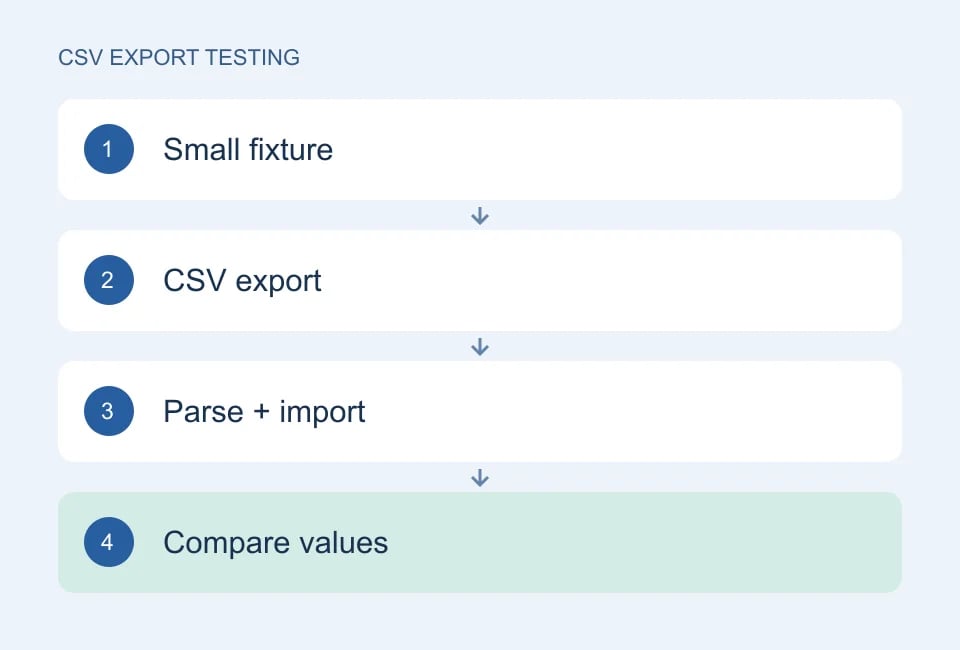
Imagine a contact import with four columns: reference, display name, postal code and note. The goal is not to create a large file. It is to prove that each field reaches the destination with the intended meaning. Start with three synthetic rows: one ordinary row, one with an accented name and leading-zero postal code, and one whose note contains a comma, quotation marks and a line break. Keep all three rows in a fixture you can inspect without scrolling.
Define the expected values
Write the expected values before exporting. The postal code should be a string, and the note should remain one field even when it spans two visual lines. Give each row a fixed reference so you can match records after an import that changes their order. Record whether empty strings and absent values have different meanings in your application. CSV does not carry a complete type schema, so that distinction needs an explicit convention.
Parse the exported structure
Open the file with a CSV parser configured for the exporter’s delimiter and encoding. Verify the column names, the number of records and the parsed value of each cell. Do not compare the number of text lines to the number of records: an embedded newline inside a quoted field changes that relationship. The RFC 4180 description is a useful baseline for quoting, but actual importers may offer additional dialect choices.
Inspect the target application
Then import the same file into the spreadsheet or application your users actually use. Select text for reference and postal-code columns rather than relying on automatic detection. Save those import choices with the test instructions. A parser-level pass and a spreadsheet-level failure are different findings, and both can be useful. Check the formula bar or underlying cell value as well as the visible display.
Compare the round trip
Export the imported data again, parse it, and compare values by reference. Compare the contract rather than the raw bytes: another exporter may use different valid quoting or newline conventions. Conversely, do not normalize away the defect you wanted to catch. If leading zeros matter, converting both sides to numbers would make a broken round trip look successful.
| Case | Expected outcome | Useful failure evidence |
|---|---|---|
| Postal code 00123 | Five characters preserved | Imported cell value and column type |
| Note with comma | One parsed field | Parser result and delimiter setting |
| Quoted phrase | Literal quotes preserved | Parsed value before and after import |
| Embedded newline | One record with multiline note | Record count from the parser |
A successful download is a transport check. A successful round trip is a data check.
Separate fidelity from spreadsheet safety
Formula-like text introduces another requirement. A safe export can intentionally prefix or otherwise transform a value, while a faithful round trip tries to preserve it. Define which result your product promises. Genory prefixes an apostrophe for the leading formula characters handled by its exporter. That is a concrete behavior to verify with the spreadsheet you support, not a universal claim that every spreadsheet interpretation is safe.
Keep a regression fixture beside the import code and name the intended consumer and settings. When a library or spreadsheet version changes, run the same small set again. A good failure report includes the original synthetic value, exported cell, parsed value and final cell type. It should not require someone to search through thousands of customer records to see what went wrong.
For the format baseline, see RFC 4180. For spreadsheet interpretation risks, see OWASP CSV Injection.
Close the loop
Import the export into a clean test destination and compare the values you expected to preserve. Distinguish intentional normalization from accidental changes. Save the application version and import settings with a regression fixture. Paid Genory access provides CSV and JSON downloads; CSV can be opened in Excel, but it is not a native Excel workbook.
Continue with Genory tools, review documentation, or open your dashboard.